Mullvad’s new Multihop modes: when to use “When needed”, “Always” or “Never”
Mullvad has replaced its Multihop switch with three modes. Here is what each one does, who should pick which, and what you give up in speed or choice of location.
By OwnYourStack Admin · Published
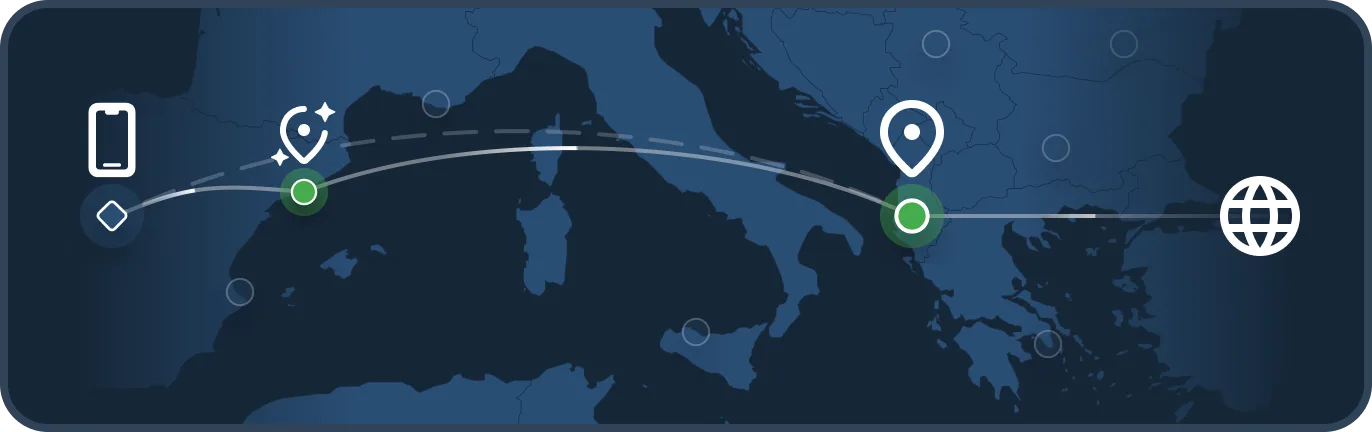
A VPN normally sends your traffic through a single server, which means that one server sees both who you are (your IP address) and, in broad terms, where you are going. Multihop adds a second server so that no single machine sees both. On 24 August 2026 Mullvad announced that it had reworked the feature: instead of an on/off switch, the app now offers three modes.
The three modes
When needed. Multihop stays off until you turn on a setting that your chosen location cannot support, such as DAITA (Mullvad’s traffic-pattern defence). In that case the app quietly adds a nearby compatible server as the entry point and exits at the location you picked, and shows an icon to tell you it has done so. You keep your preferred settings and the connection is not blocked.
Always. Every connection goes through two servers. You can choose the entry server yourself, or let the app pick a nearby one that supports all your enabled features (the “automatic location” option). Mullvad notes this costs some performance in exchange for extra anonymity.
Never. Multihop is off and traffic uses a single server. It is the fastest option, but the location you choose must support every feature you have enabled, which can narrow your choice of servers.
Which should you choose?
- Most people will be happiest with When needed: it is the default for anyone who did not use Multihop before, and it avoids the “connection blocked because this server lacks feature X” problem.
- If you are worried about being linked to your destination (for example you rely on a VPN for sensitive research), Always is the mode to pick. Expect lower speeds, which matters for streaming or large downloads.
- If you mainly use a VPN on public Wi-Fi or to reach a streaming service in another country, Never keeps things quick, as long as your chosen server supports your settings.
What happens to your existing settings
Existing users are migrated automatically when they update, and the app tells you the first time you open it. According to Mullvad, someone who used Multihop with DAITA is moved to Always with the automatic entry server, and someone who had Multihop off moves to When needed. The old “DAITA – Direct only” option has been replaced by the new modes.
Availability
When Mullvad published the post, the new modes were available in the iOS app, with Android and desktop versions described as coming. Check that your app is up to date: if you do not see a Multihop mode setting, your platform’s release has probably not arrived yet.
A reminder: a VPN is only as good as the app around it
Multihop does not fix everything. If you are on Android, read our piece on how a VPN can still leak your real IP address, and for the UK policy background see what the government decided on VPNs and under-16s. Mullvad also announced it is closing its public DNS: see how to switch to Quad9.
Source: Mullvad VPN blog, “Introducing Multihop modes”, 24 August 2026.